Back to Guides

AlgoTradersForex — Getting Started with XM

How to sign up, sign in, deposit and start copy trading with Pot of Gold

Partner codes: Two codes are used at different stages. Each is shown in its step when you need it — avoid mixing them up.

Important: Deposit to your Investor account (not the other Real account).

Step 1 — Sign up with our referral link

1Create your account

Click the referral link above to open an XM account. Using this link supports AlgoTradersForex and gives you access to copy trading.

XM referral page after clicking the link

Upon clicking the referral link, you'll see the XM landing page and you will see "Adrian has invited you to join XM" something like that.

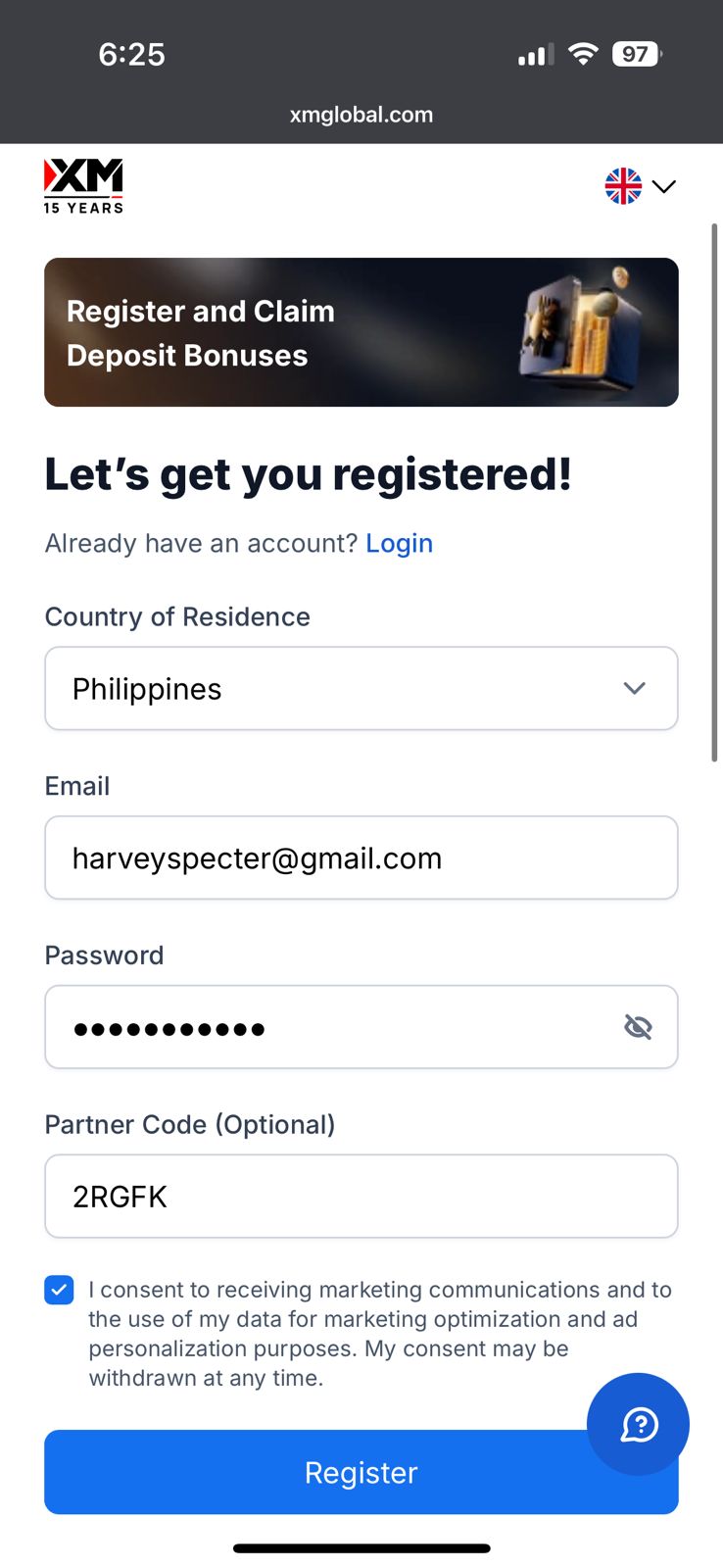
Click Start Trading and fill up the sign-up form with your details.

Sign-up partner code (optional): 2RGFK
Start Trading button on XM referral landing

Complete the signup form with your details and verify your account.

Step 2 — Sign in

2Log in to the app

Open the XM app on your phone and sign in with your new credentials.

Signed in - Markets view

You’ll see the main Markets screen with popular markets, and the bottom navigation bar.

Step 3 — Open Copy Trading and create investor account

3Go to Copy Trading and set up investor account

In the bottom navigation bar, tap More (the grid icon), then tap Copy Trading.

More - Copy Trading option

Use the search bar and type: pot of gold. Tap Copy on the strategy you want (e.g. Pot of Gold Scalper or Pot of Gold AI).

Search Pot of Gold

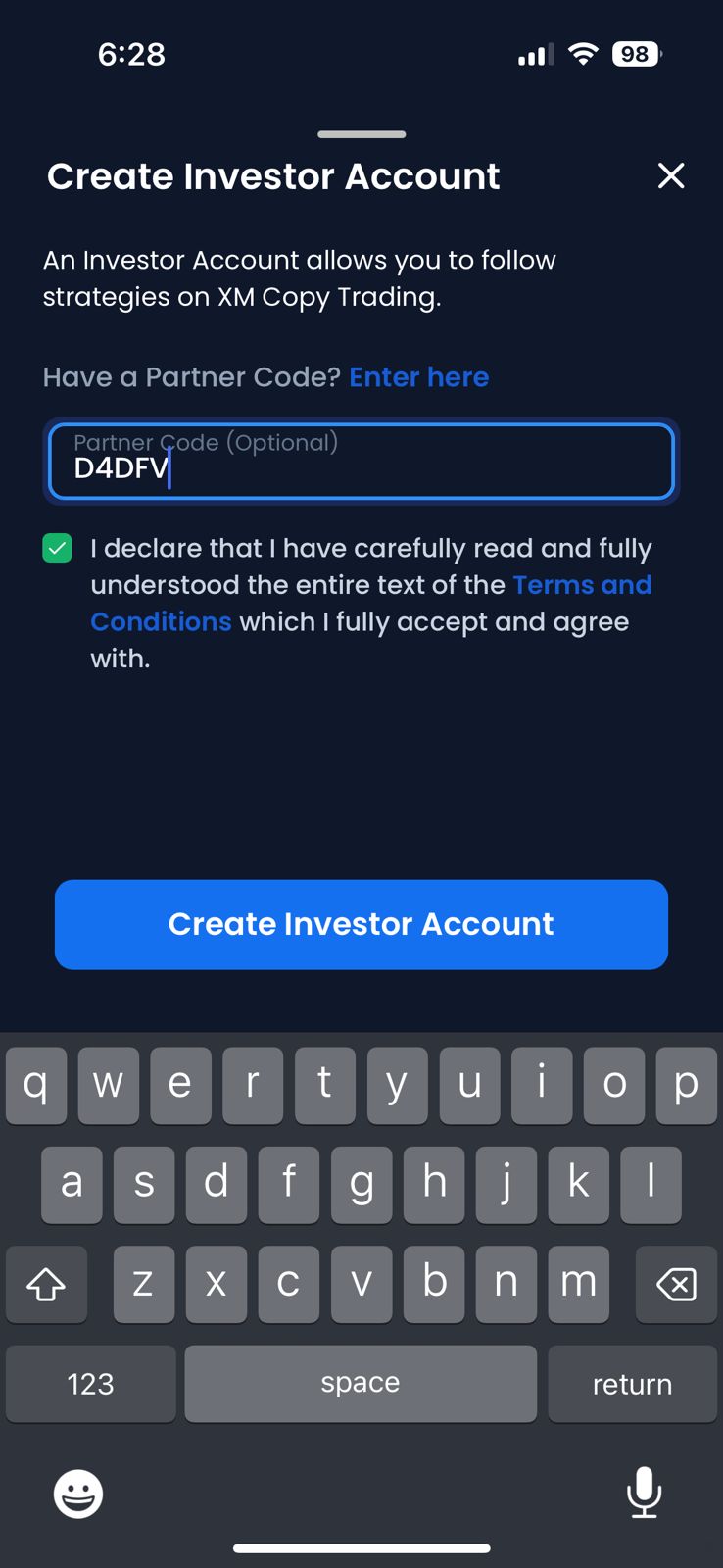
You'll see the investor account creation screen. This will be your copy-trading account.

Investor account creation
Investor account partner code: D4DFV

Step 4 — Deposit to investor account

4Fund your investor account

On the next screen you'll see your investor account shows $0.00. You need to deposit funds into this investor account.

Investor account - deposit needed

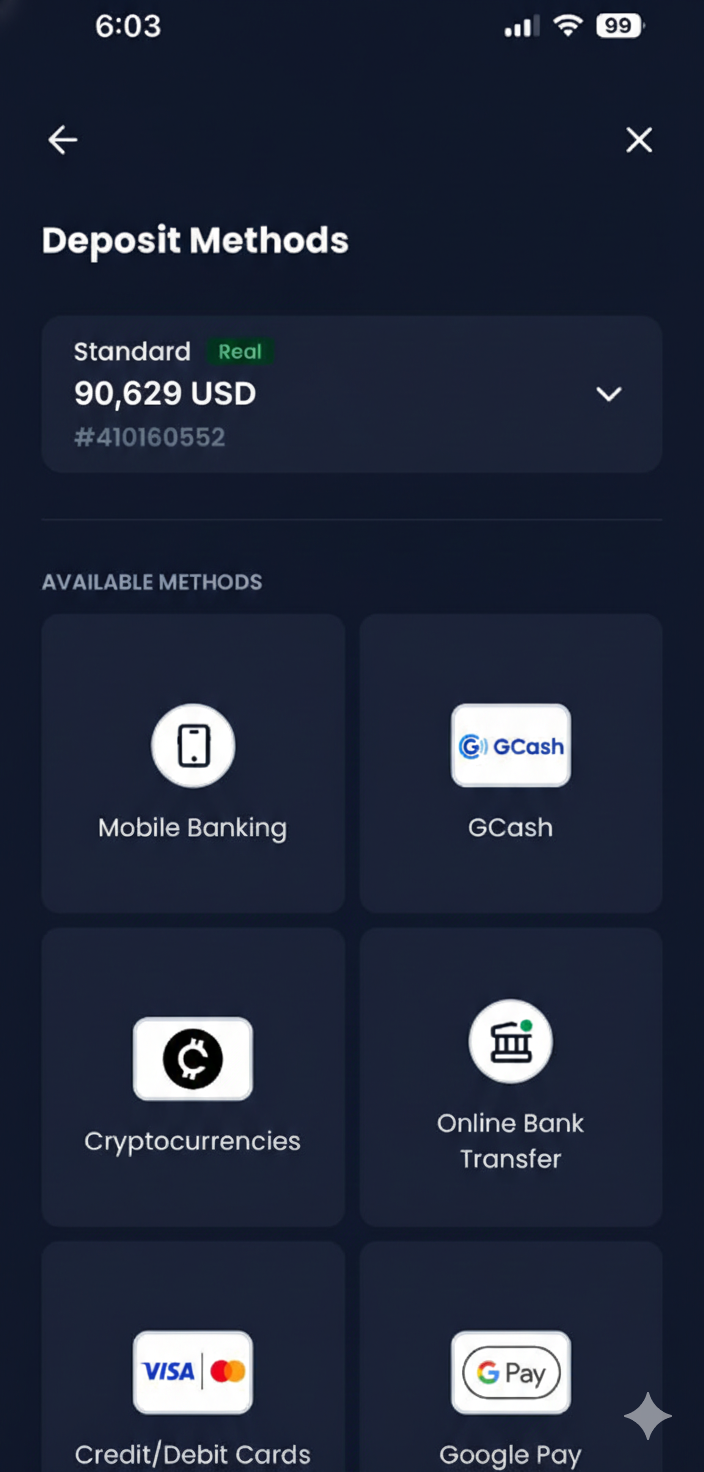
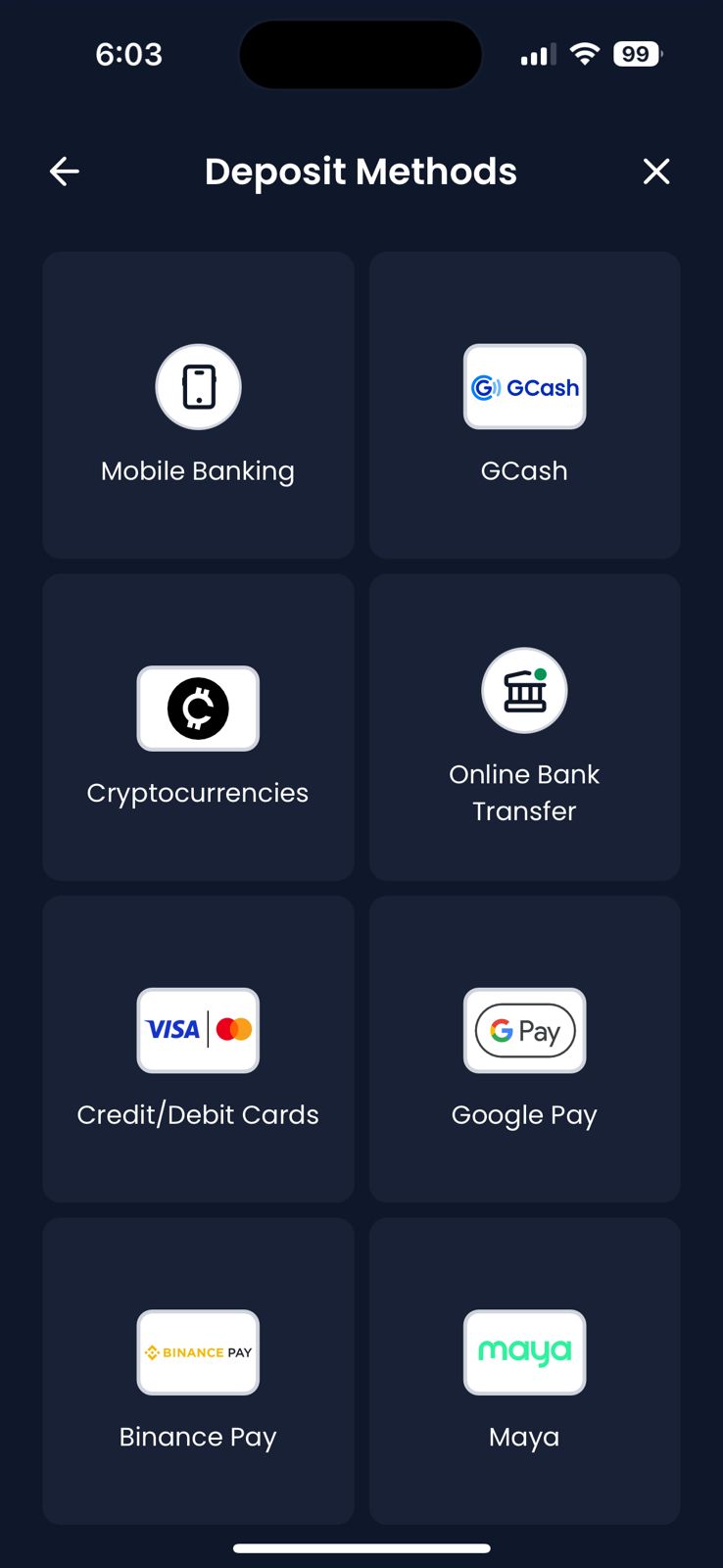
Deposit using your preferred method (card, bank transfer, e-wallet). Remember: deposit to the Investor account, not the Real account, so you get the bonus on your copy-trading account.

Tip for smooth withdrawals: Use a payment method (card, bank account, or e-wallet) where the account holder name matches the name on your XM trading account. This avoids issues when you withdraw funds later.

Deposit flow example (same steps on investor account):

Deposit screen - choose payment method Deposit confirmation - transaction details

Step 5 — After successful deposit

5Funded investor account

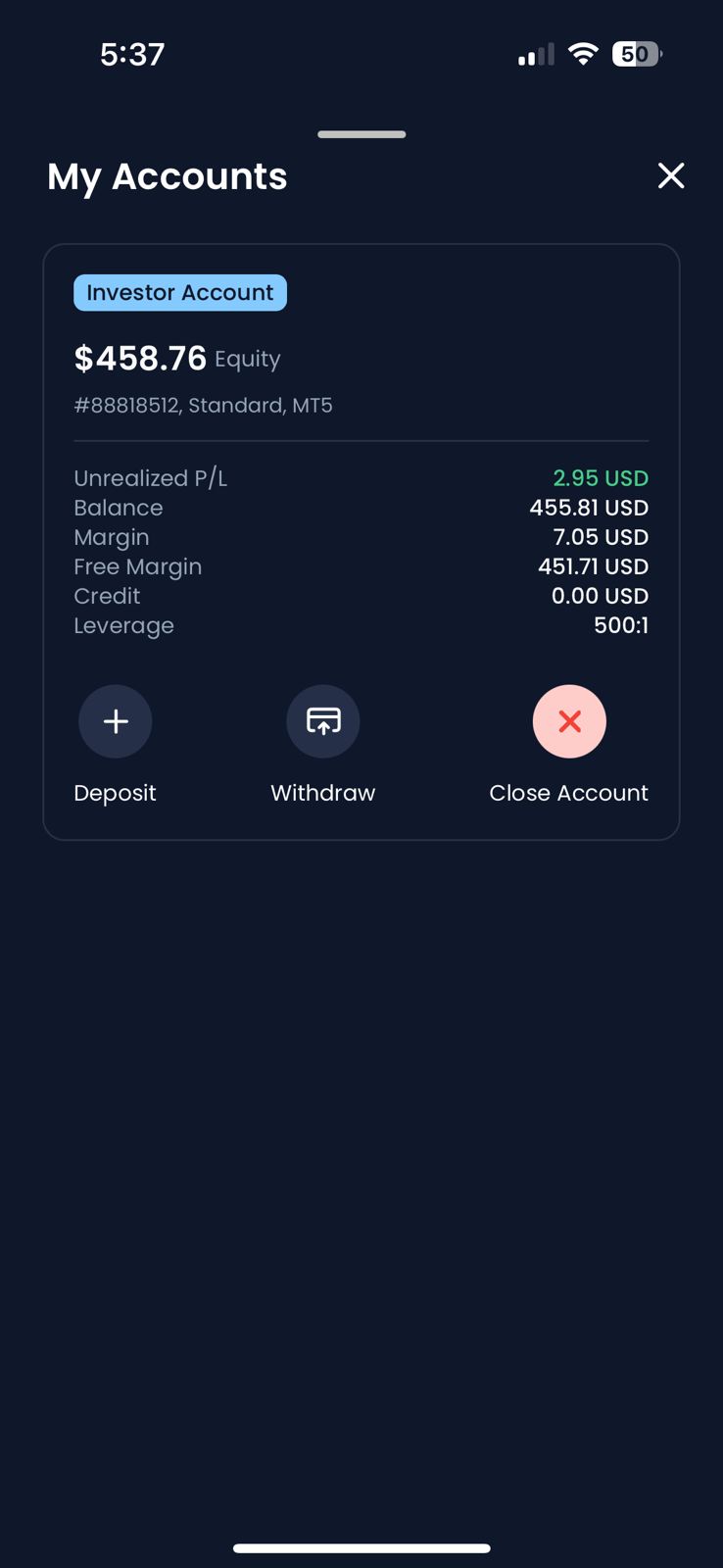
Once your deposit is complete, your investor account will show the balance.

Investor account funded

Step 6 — Copy the selected strategy

6Set investment and copy

Set the investment amount according to your chosen strategy (meet the minimum deposit and consider the recommended size). Do not tick "Copy open trades". Leave take-profit and stop-loss as they are. Confirm to start copying.

Copy on selected bot

Step 7 — You're copying

7Active copy

You're now copying the strategy. Your PnL (profit and loss) is shown at the top.

Already copied - PnL at top